
The Standard Boxes feature in Connect2Cart allows you to save frequently used box sizes for quick selection when creating shipments. Instead of manually entering package dimensions for every shipment, you can select a saved box and automatically populate its dimensions.
This feature helps streamline your shipping process, reduce data entry errors, and ensure consistent package measurements.
Enabling Standard Boxes
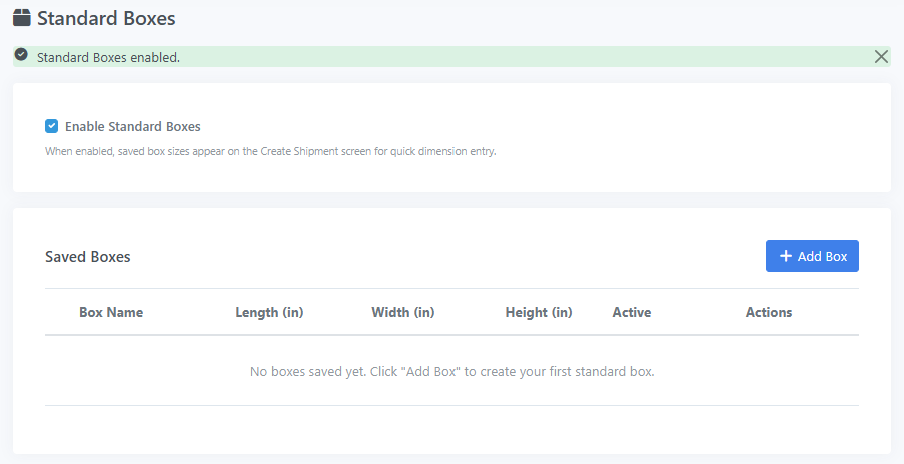
Before you can use saved boxes, you must enable the Standard Boxes feature in your Connect2Cart account.
- Navigate to the Standard Boxes settings page.
- Locate the Enable Standard Boxes checkbox.
- Check the box to enable the feature.
- A confirmation message will appear indicating that Standard Boxes has been enabled.
Once enabled, your saved boxes will be available for selection on the Create Shipment screen.
Adding a Standard Box
You can create as many standard box configurations as needed for your shipping operations.
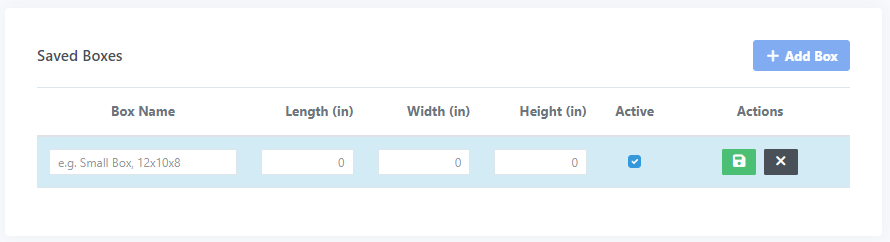
- On the Standard Boxes page, locate the Saved Boxes section.
- Click the + Add Box button.
- Enter the following information:
- Box Name: Enter a descriptive name to identify the box, such as Small Box, Medium Box, or Large Box.
- Length (in): Enter the box length in inches.
- Width (in): Enter the box width in inches.
- Height (in): Enter the box height in inches.
- Active: Check this option to make the box available for shipment selection.
- Click the green Save icon to save your box.
A confirmation message will appear once the box has been added successfully.
Example Box Configurations
| Box Name | Length | Width | Height |
|---|---|---|---|
| Small Box | 12 in | 6 in | 6 in |
| Medium Box | 12 in | 10 in | 10 in |
| Large Box | 15 in | 12 in | 15 in |
Tip: Use descriptive box names that make it easy to identify the correct packaging when preparing shipments.
Managing Saved Boxes
All configured boxes appear in the Saved Boxes table, where you can review their dimensions and manage existing configurations.
Editing a Box
- Locate the box you want to modify.
- Click the Edit icon in the Actions column.
- Update the box name, dimensions, or Active status as needed.
- Save your changes.
Deleting a Box
- Locate the box you want to remove.
- Click the red Delete icon in the Actions column.
- Complete any confirmation prompt to remove the box.
Active and Inactive Boxes
The Active setting controls whether a saved box is available for selection when creating shipments.
You can deactivate a box that is no longer regularly used without deleting its configuration.
Using Standard Boxes When Creating a Shipment
Once you have saved your boxes, you can quickly select them when configuring shipments.
- Open an order in Connect2Cart.
- Locate the Configure Shipment panel.
- Under Weight & Dimensions, locate the Box dropdown.
- Click the dropdown to display your active saved boxes.
- Select the desired box.
Each available box is displayed with its name and dimensions, making it easy to identify the appropriate package.
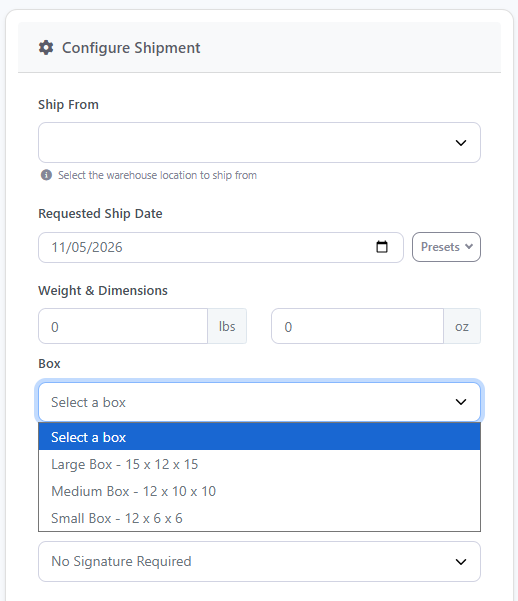
For example:
- Large Box – 15 x 12 x 15
- Medium Box – 12 x 10 x 10
- Small Box – 12 x 6 x 6
Selecting a saved box automatically populates the shipment’s length, width, and height fields with the configured dimensions.
Important: Standard Boxes store package dimensions, not package weight. You must still enter the appropriate shipment weight before purchasing a shipping label.
Best Practices
To get the most out of Standard Boxes:
- Save frequently used packaging: Create configurations for the boxes you regularly use.
- Use accurate measurements: Enter the actual outside dimensions of each package in inches.
- Keep names consistent: Use clear naming conventions so your team can quickly identify boxes.
- Deactivate unused boxes: Keep your shipment dropdown organized by making obsolete box sizes inactive.
- Verify shipment details: Confirm the selected box and shipment weight before generating a shipping label.
Frequently Asked Questions
Can I save multiple box sizes?
Yes. You can create multiple saved box configurations for the different package sizes used by your business.
Do I need to enter dimensions every time I ship an order?
No. Once you have configured Standard Boxes, simply select a saved box to automatically populate the package dimensions.
Does selecting a box automatically enter the shipment weight?
No. The Standard Boxes feature stores length, width, and height only. Shipment weight must be entered separately.
Can I change an existing box size?
Yes. Use the Edit action in the Saved Boxes table to update a box’s dimensions or name.
Can I temporarily stop using a box without deleting it?
Yes. Set the box to inactive to remove it from shipment selection while retaining its saved configuration.
Why don’t I see my saved boxes when creating a shipment?
Verify that Enable Standard Boxes is checked and that the box you want to use is marked as Active.
Summary
The Standard Boxes feature makes shipping faster and more convenient by allowing you to save and reuse common package dimensions. By configuring your most frequently used boxes, you can reduce repetitive data entry and simplify the shipment creation process.